Turn scans into editable documents
Recognize PDF scans and images, review text beside the original and export Word, TXT, text PDF or a PDF with the scan and searchable OCR text. Free, in your browser.
Try the complete scan-to-document workflow
Open our fictional English sample, recognize its text, compare it with the scan and correct it before exporting. No personal document is needed.
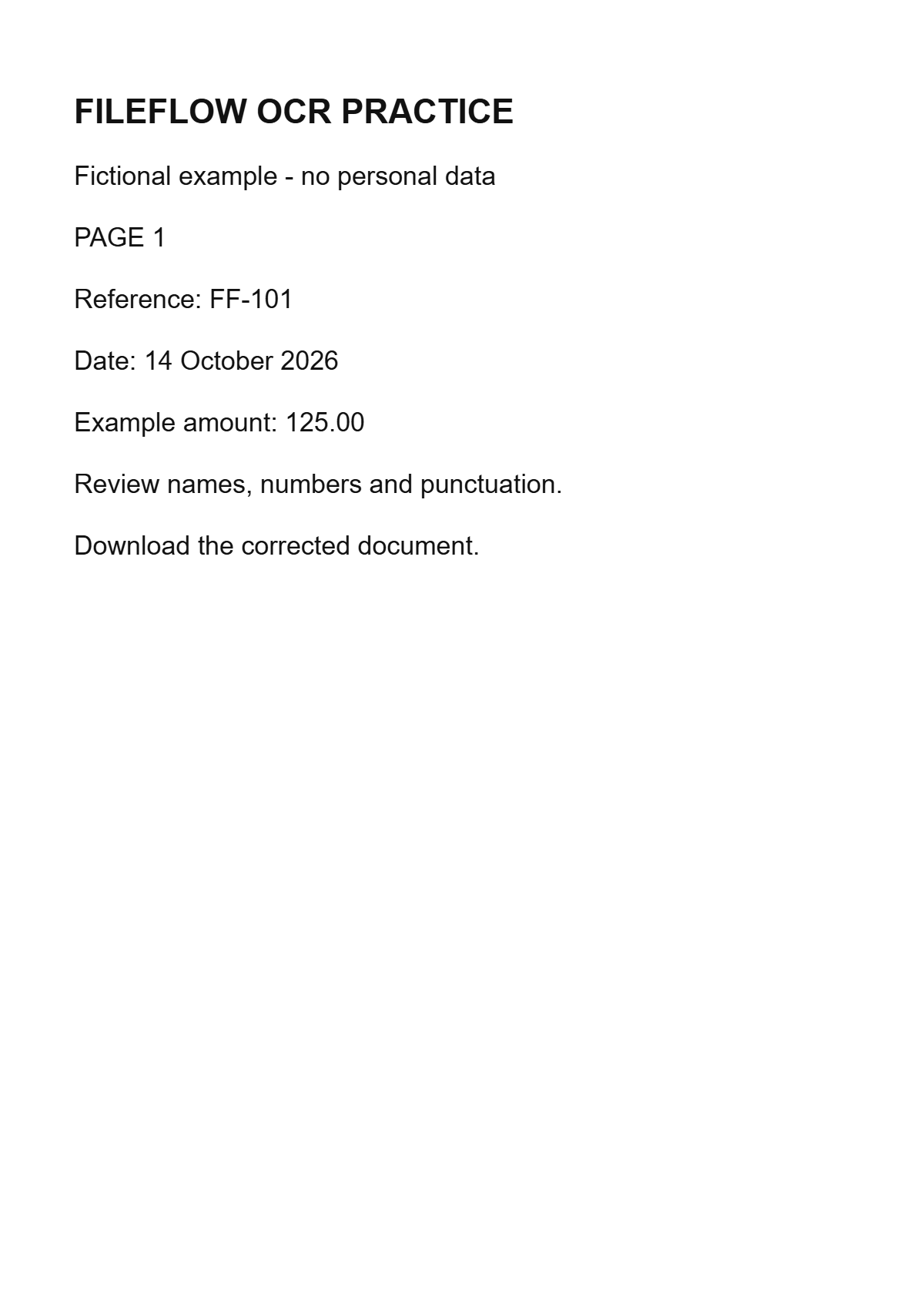
Text to check against the original
Reference: FF-101
Example amount: 125.00
Choose the output you need
Word (DOCX) creates an editable document from your corrected text and supported formatting. It does not reproduce the original scan layout.
Searchable scan PDF keeps page images and adds the OCR text layer. Manual text corrections are not used for this layer. After editing or changing a page, recognize it again before this export.
Guide and frequently asked questions
Convert scans into an editable document in one workflow. Review each original beside its recognized text, correct mistakes and apply headings, bold, italic, underline and lists.
How to use this tool
- Open PDF scans or images, choose the recognition language and select up to 20 pages.
- Recognize unfinished pages, review each original and correct its text. Reorder or exclude pages as needed.
- Choose Word, TXT or PDF, create the document and download it before leaving this tab.
Example
For two scanned letters, add both files, choose their recognition language and select the required pages. Run recognition, compare each original with its text and correct names and dates. Export DOCX for further editing. If you choose PDF with scan and search, it uses the OCR layer rather than your manual text edits; rerun recognition after changing the source and check search in a PDF reader.
Limits and things to check
Up to 50 files and 100 MiB combined, with up to 500 source PDF pages; select at most 20 pages. Images: JPG, PNG or WebP, up to 20 MiB and 8 million pixels each. Up to 20,000 characters per page and 200,000 per text export. Text PDF supports Latin, Cyrillic and Greek. PDF with scan and search uses OCR language support, with up to 20 MiB per recognized page and 100 MiB combined. Language models require a network connection. Editable tables and columns are not reconstructed. PDF with scan and search currently supports left-to-right text. For Arabic, Hebrew or other right-to-left text, export Word or TXT.
Frequently asked questions
Does the export preserve the original scanned layout?
Word and text PDF create a new document from the edited text. TXT keeps plain text only. Choose PDF with scan and search to keep the scan image with an invisible OCR text layer. It uses recognized text, not manual text changes. Source PDF pages are rasterized at up to 150 dpi; page sizes and selected order are retained. Tables and columns are not rebuilt as editable objects. Check OCR before downloading. PDF with scan and search currently supports left-to-right text. For Arabic, Hebrew or other right-to-left text, export Word or TXT. If export is blocked after rotating or replacing a source, recognize that page again: stale OCR cannot be used for searchable PDF. For right-to-left OCR use DOCX or TXT. Download before closing the tab; this workflow has no server backup.
Are my files uploaded?
Processing runs in your browser. File contents, names and recognized text are not sent to FileFlow servers or analytics. Loading the site and OCR models still uses the network. Keep your original until you have checked the download.
Practical example and format choices
Which document should you download?
| Format | Keeps | Does not keep |
|---|---|---|
| DOCX | Editable paragraphs, heading sizes and emphasis | Original scanned layout, images and tables |
| TXT | Unicode plain text and source-page separators | Bold, headings and list formatting |
| New PDF | Selectable edited text, heading sizes and emphasis | Original scan image or its exact geometry |
| PDF with scan and search | Page image and invisible OCR text | Manual word changes, forms and digital signatures |
Worked example: assemble two scanned letters
Open two page images. Choose their printed language and recognize them. Suppose the first letter contains reference AB-101 while OCR returns AB-IOI. Replace the guessed characters only after checking the original. Make the subject line a heading and review the second letter the same way.
Move the second page above the first if that is the required reading order. Export DOCX, open it and verify both letters, their order and the corrected reference. If you also need a stable text copy, export TXT from the same edited pages. This example illustrates correction; it is not a measured OCR accuracy claim.
Read the complete guide